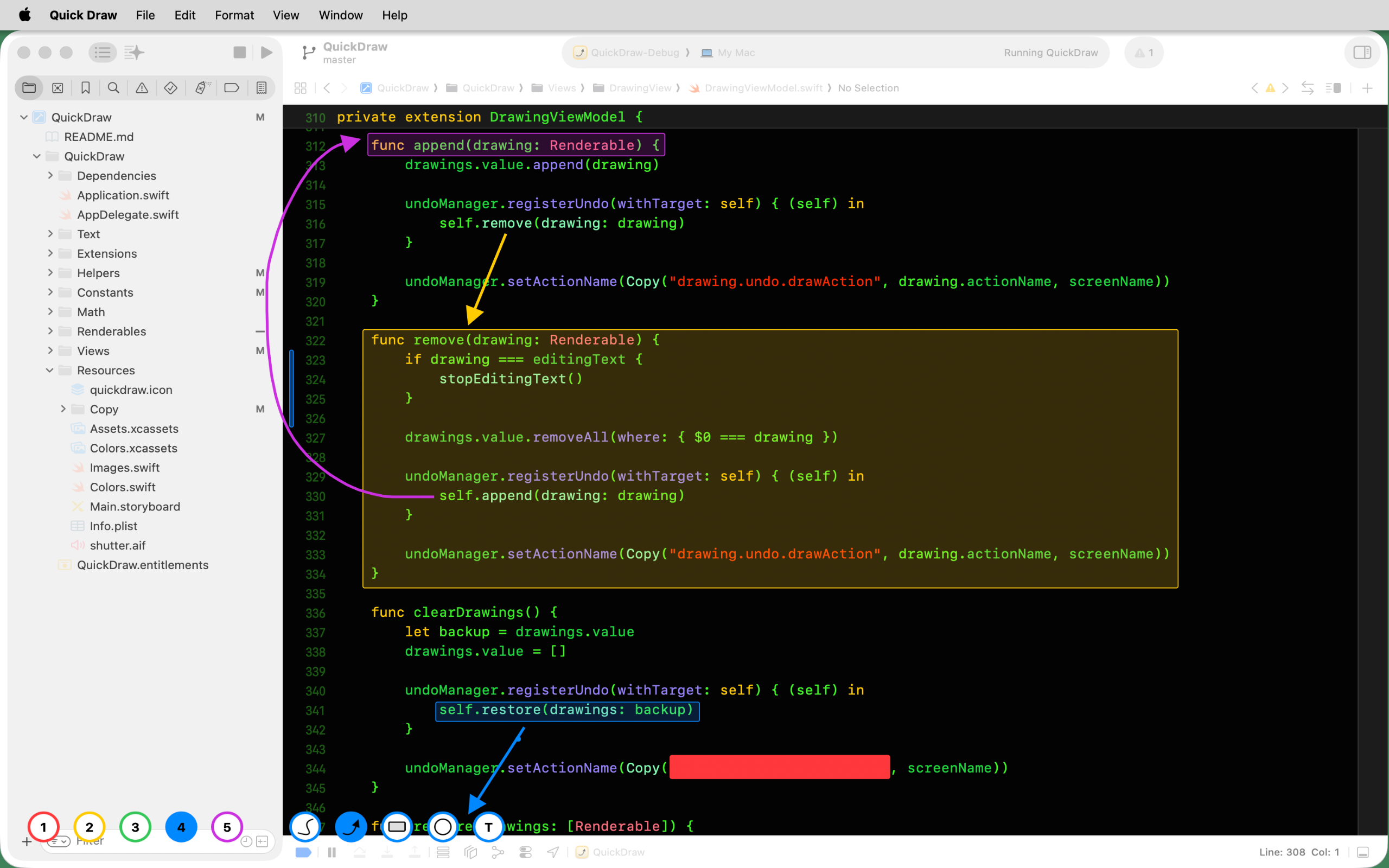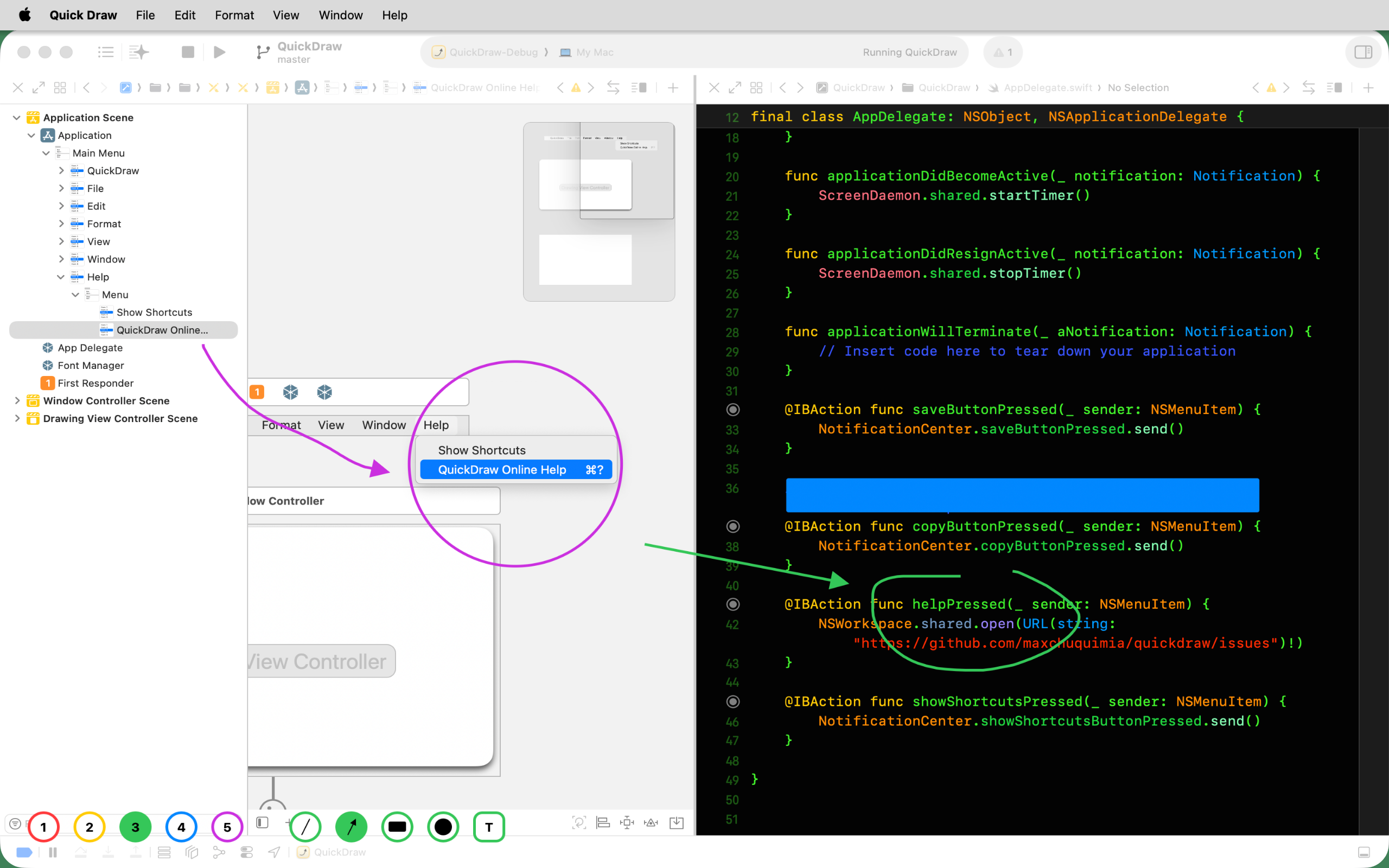
Lines, arrows, rectangles, circles and text, drawn straight onto your screen over any window. Point out what you're talking about while screencasting, or cover up what shouldn't be in a screenshot. Press escape and you're back to work.

Circling the cursor wildly and hoping people follow it is not a great way to point at something. Draw an arrow to it instead, or put a box around it, and everyone watching knows exactly where to look.
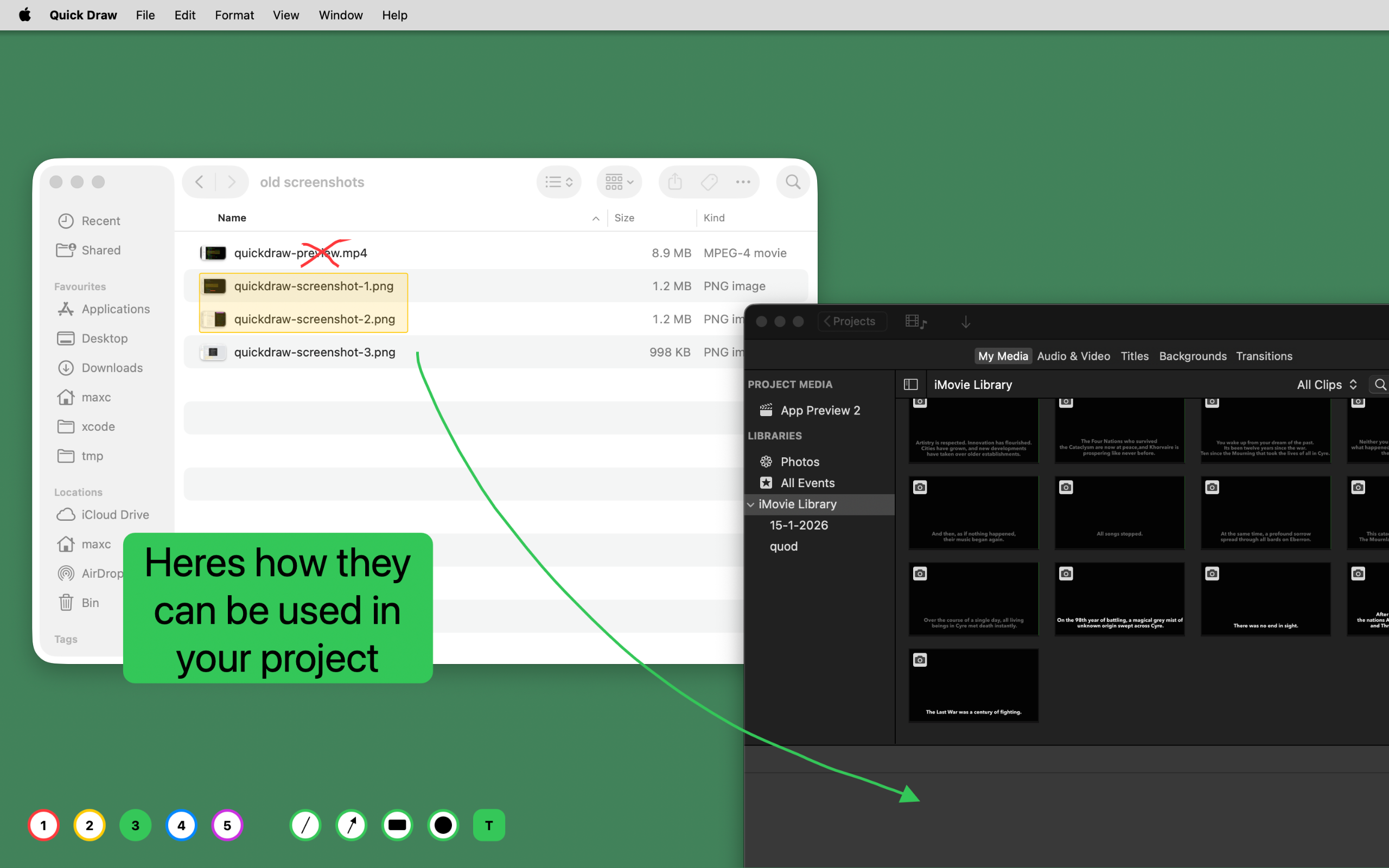
Hold shift and a rectangle fills in solid, so anything you'd rather not share is covered before the screenshot is even taken. No cropping, no opening an image editor afterwards.
Press T and type. The text lands in whichever colour you have selected, sized to read from the back of a room, so you can label a thing rather than just circle it.
Nothing you draw belongs to a particular app. An arrow can start on a note in one window and land in a completely different one, and it stays put while you keep talking.
One press of the escape key wipes the screen clean. Press it again and Quick Draw steps aside, putting you back exactly where you were without missing a beat.
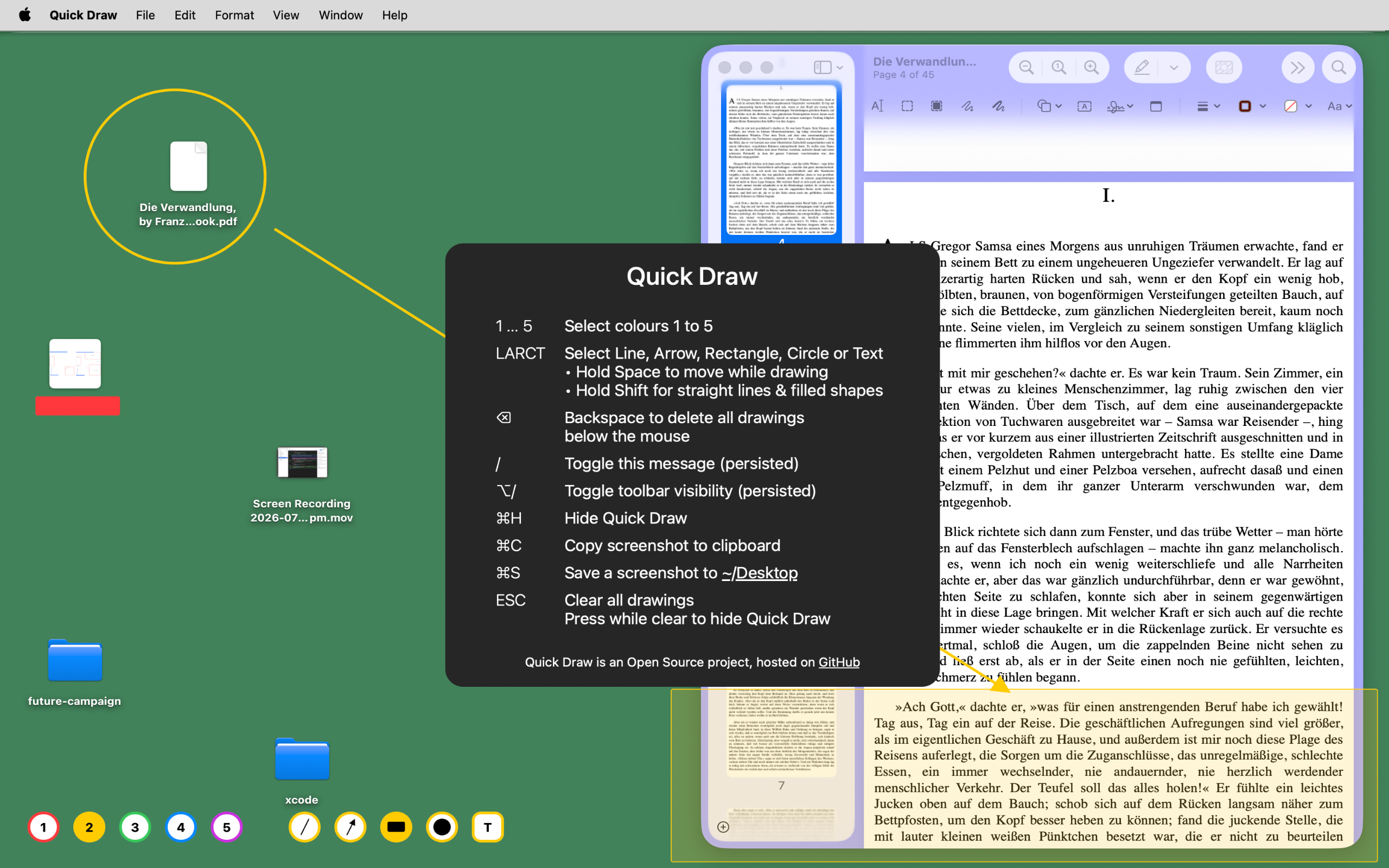
Forgotten a key? Hit slash and the card below appears over whatever you're doing. Backspace erases the drawings under your mouse, and Command-Z undoes the last one.
There's no palette to hunt through mid-sentence, though a toolbar sits at the bottom of the screen if you'd rather click. Option-slash hides it.
Quick Draw collects no data, personal or otherwise. Nothing is stored on our servers, and nothing leaves your Mac.
The source is on GitHub if you'd like to read it or build it yourself. The App Store version is the signed, sandboxed build, kept up to date for you.
Two things, mostly. While screencasting or presenting, you can draw an arrow or a circle around whatever you're talking about, or type a label next to it, instead of waving the mouse pointer at it. Before taking a screenshot, you can drop a filled rectangle over anything you'd rather not share, so there's nothing to edit out afterwards.
Yes. Quick Draw draws over the whole screen, so your lines, shapes and labels sit on top of whatever windows are already there, whatever app they belong to. A single arrow can span two windows from different apps.
Yes. Press T, click where you want the label, and type. It comes out in whichever colour you have selected, and you can move or delete it like any other drawing.
Press escape to clear the screen. Press it again on an already clear screen and Quick Draw gets out of the way, dropping you back into whatever you were doing. Backspace erases just the drawings under the mouse, and Command-Z undoes the last one.
Keys 1 to 5 pick a colour, and L, A, R, C and T pick line, arrow, rectangle, circle or text. Hold shift for straight lines and filled shapes, or hold space to move a shape while you're still drawing it. Command-C copies a screenshot, Command-S saves one to the desktop, and the slash key brings the full list up on screen whenever you need it.
Yes, the source is on GitHub, so you can read it, build it yourself, or file an issue. Buying it on the Mac App Store gets you the signed, sandboxed build with updates handled for you.
Quick Draw is a one-time purchase of US$1.99 on the Mac App Store. There's no subscription. It needs macOS 10.14 or later.